



本文链接: https://blog.csdn.net/lishuangquan1987/article/details/123588802
最近使用github拉取私有仓库的代码时,报如下错误:
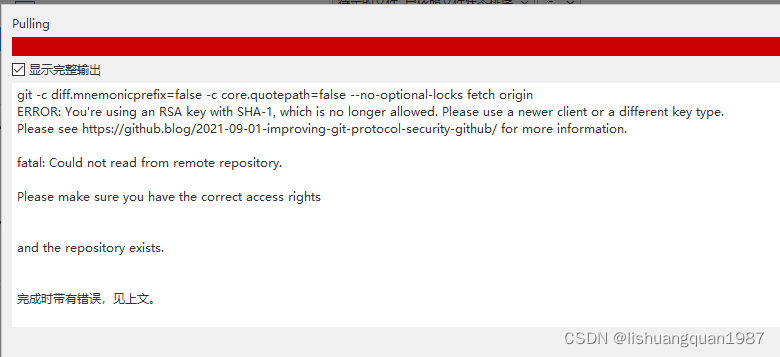
git -c diff.mnemonicprefix=false -c core.quotepath=false --no-optional-locks fetch origin
ERROR: You’re using an RSA key with SHA-1, which is no longer allowed. Please use a newer client or a different key type.
Please see https://github.blog/2021-09-01-improving-git-protocol-security-github/ for more information.
之前生成的ssh key突然不能用了,重新生成也是一样。
后来参考github的文档,使用不同的算法重新生成ssh key后解决。
解决步骤
在本地生成ssh key
查看各种文档,发现生成ssh key使用的算法是rsa:
ssh-keygen -t rsa -C "123123@qq.com"
但是这种方式已经不可用了,生成之后加入到github还是报以上的错误!!!
正确的做法:
$ ssh-keygen -t ed25519 -C "your_email@example.com"
生成之后,会在本地生成两个文件:
- id_ed25519
- id_ed25519.pub
将公钥添加到github
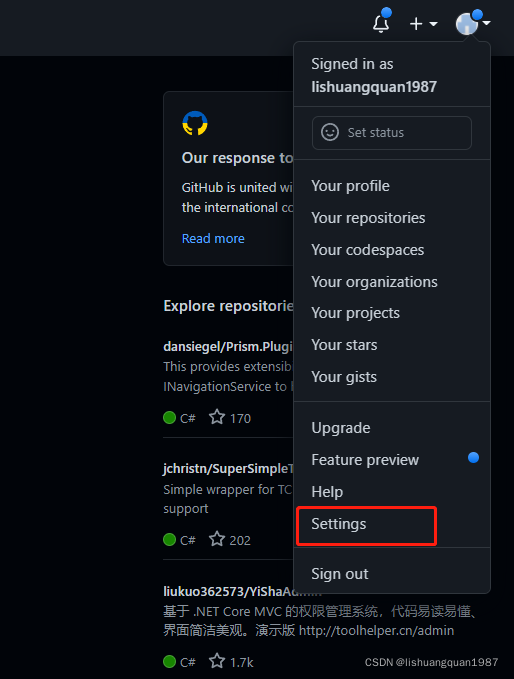
在github主页,用户那里,点击下拉菜单->settings,如下图操作:
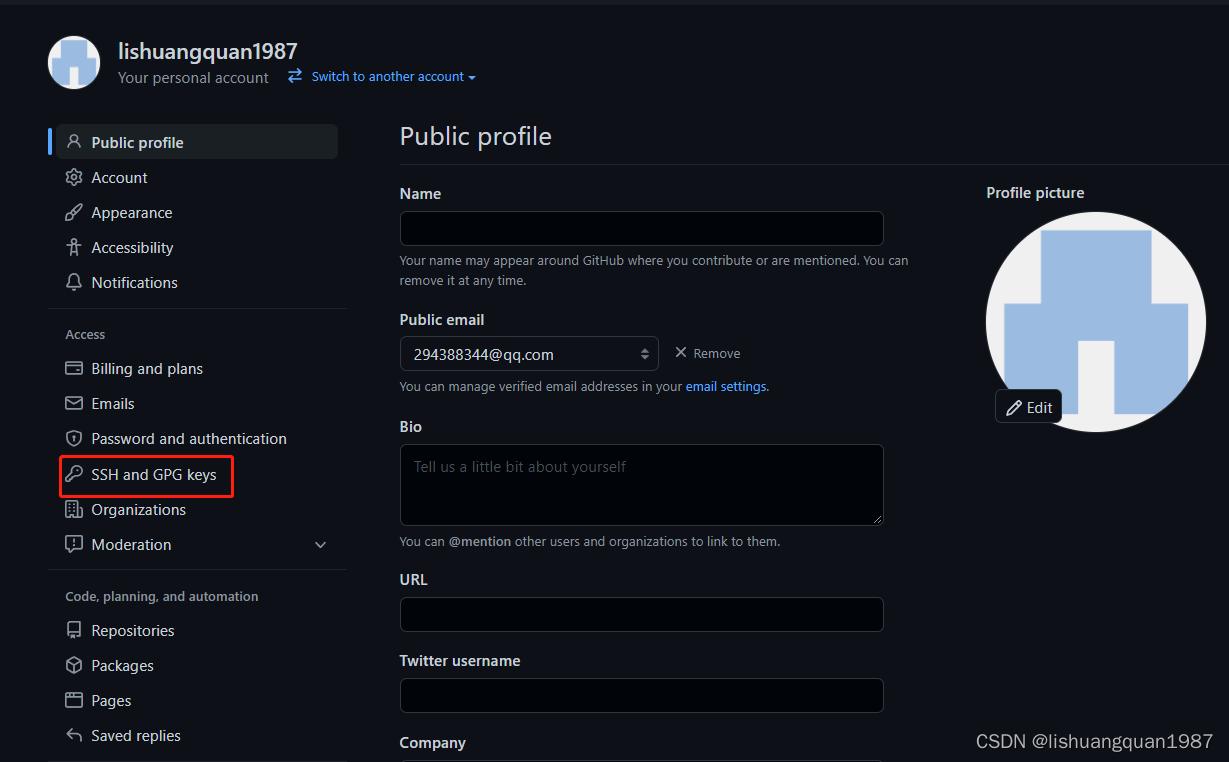
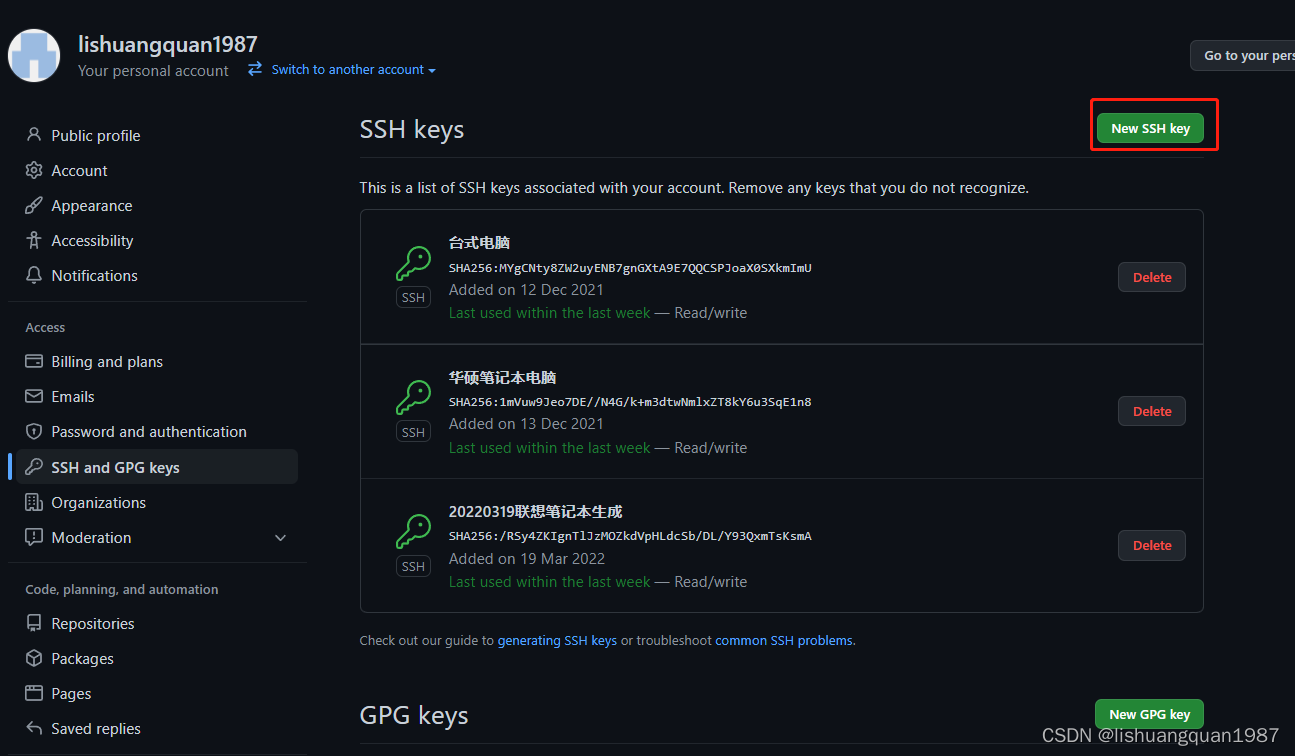
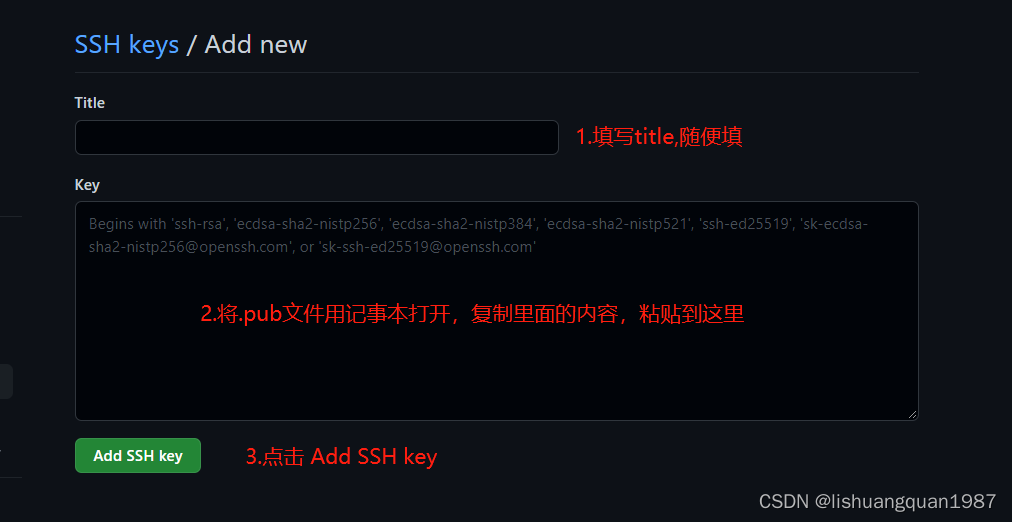
注意: github上添加的是公钥的内容,即 id_ed25519.pub 文件的内容
使用私钥生成sourcetree的私钥并添加到sourcetree
1.生成sourcetree的私钥
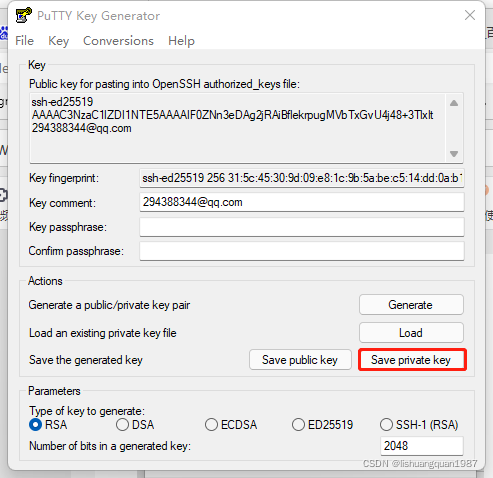
点击sourcetree的菜单:工具->创建或者导入ssh 密钥,点击load,选中上述生成的密钥文件: id_ed25519
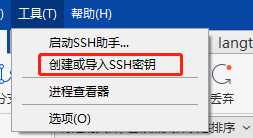
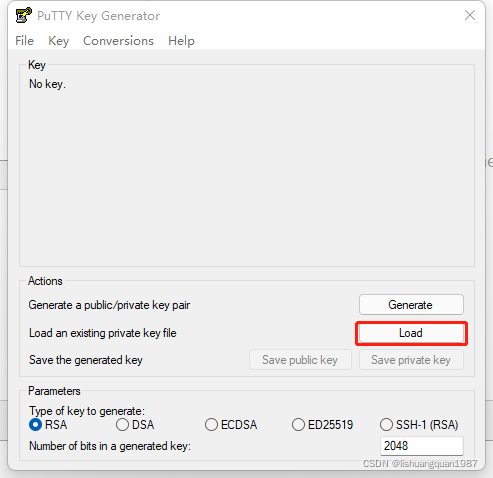

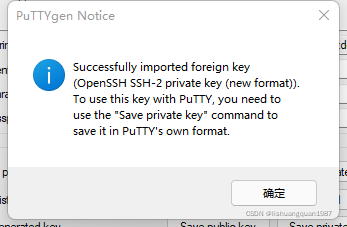
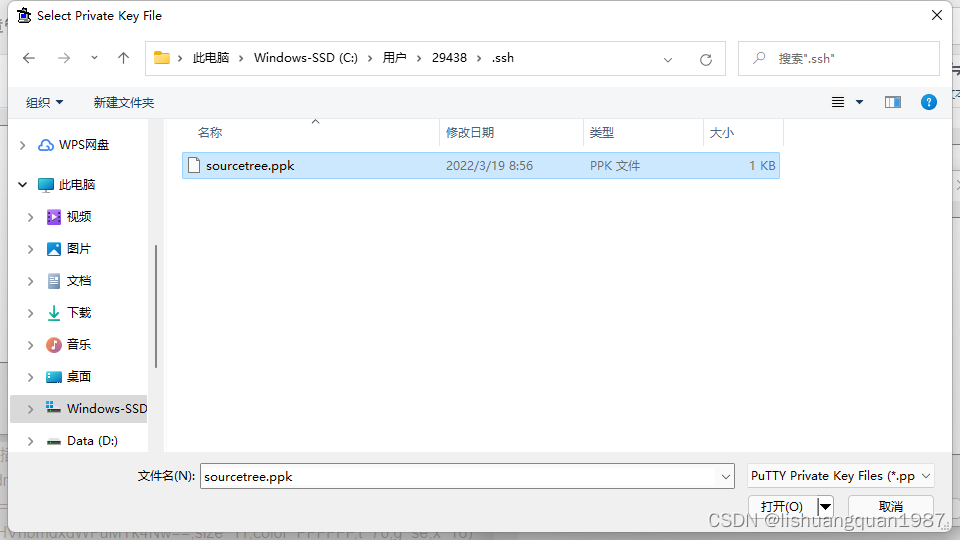
点击确定,最后点击 save private key,选择保存的路径,就能生成sourcetree的密钥
2.添加soucetree的密钥到sourcetree
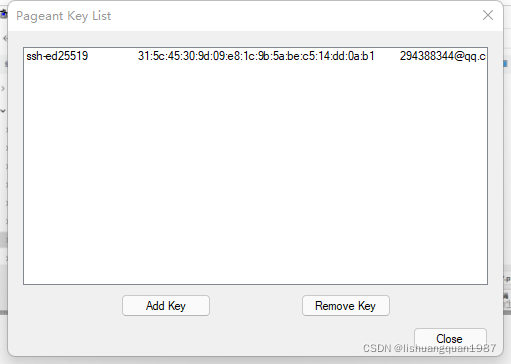
在sourcetree上点击菜单:工具->启动ssh 助手(如果已经启动,可以点击右下方的图标,双击即可弹出)

点击 add key,将刚刚生成的 sourcetree.ppk 添加
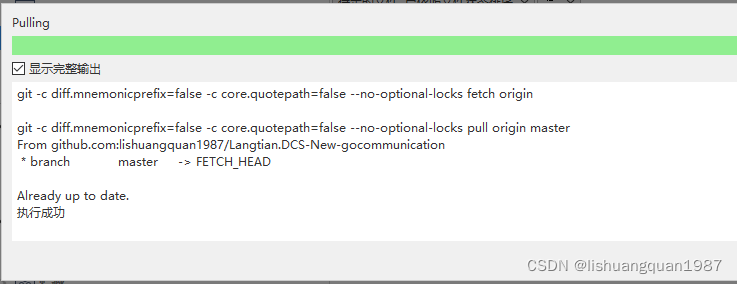
这样就完成了整个ssh操作,现在就可以拉取代码不会报错了:
评论区